

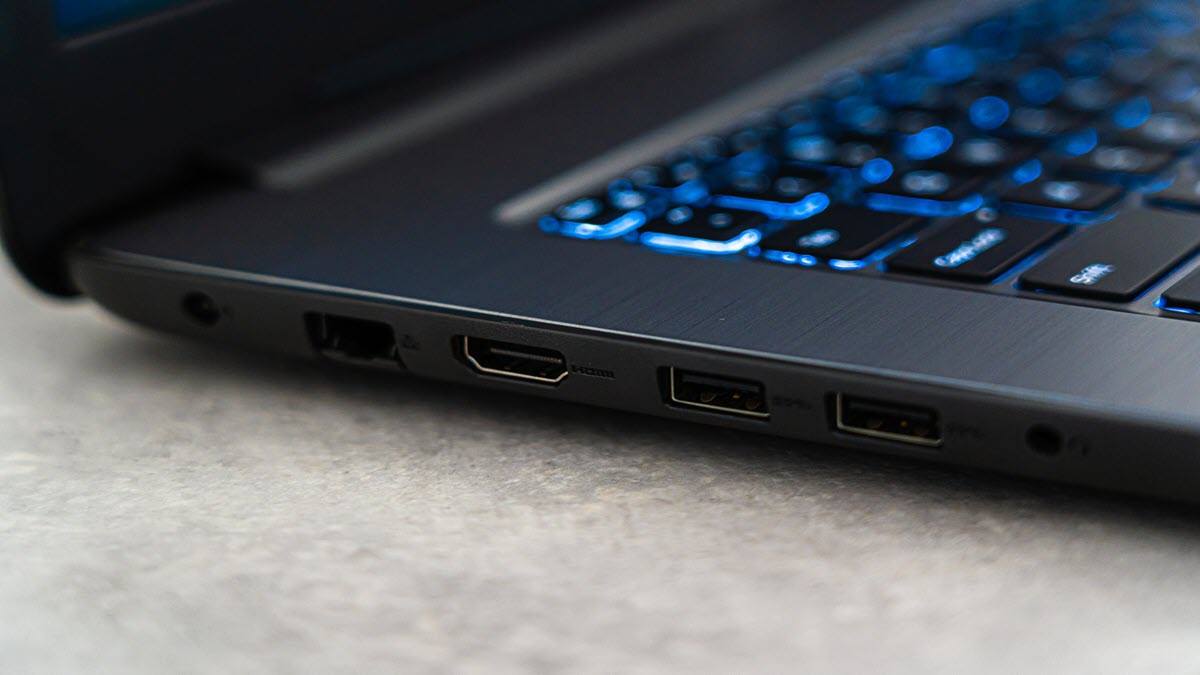

A wide range of peripherals, including webcams, external hard drives, mice, and keyboards, connect to your PC via USB. When Windows throws a “USB Device Not Recognized” error, or a device randomly disconnects, the first instinct is usually: “I should reinstall USB drivers.”
However, many USB issues are not caused by broken USB drivers, and reinstalling the wrong part of the system can waste time, or, in rare cases, temporarily disable input devices.
In this guide, we’ll show you how to diagnose the problem first, and only reinstall drivers when it actually makes sense.
Diagnose the specific USB peripherals (before you reinstall)
Before wiping your drivers, let’s identify what’s actually wrong. Many USB issues are not caused by broken USB controller drivers, and a full driver reinstallation is often unnecessary.
- Is only one device not working? For example, only your USB headset has no sound or the audio cuts out, only the mouse disconnects, or only the webcam is not connected. If yes, this is usually related to that device-specific driver, a physical cable or port issue, or your Windows power management settings. Do not reinstall your core USB drivers yet; try the fixes below instead.
- Are multiple USB devices failing? If multiple USB accessories stop working simultaneously, disconnect in clusters, or the “USB Device Not Recognized” error appears repeatedly across different ports, it is likely a system-level USB driver issue. In this case, skip to part 2 – reinstall your USB drivers safely.
Fix 1 – Try a different USB port or cable
This is the fastest and most reliable check of your hardware, helping you pinpoint faulty ports, unstable hubs, or damaged cables.
- Unplug the problem device and plug it into a different port.
If you are using a desktop PC, always use the ports on the back of the computer tower (directly connected to the motherboard) rather than the front panel ports. - Use a different cable to rule out internal cable breakage.
Fix 2 – Reinstall the device, not the USB drivers
If only one device, such as a headset, a mouse, or a gaming controller, is malfunctioning, that device driver may be corrupted or outdated. You can reinstall or update that specific device driver manually (via Device Manager or the manufacturer’s website) or automatically using a reliable driver updater like Driver Easy.
Fix 3 – Turn off USB power saving
Windows may temporarily shut down USB ports to save power if it thinks a device is drawing too much power or sitting idle. This is a common cause for random disconnects. Here’s how to disable USB power saving:
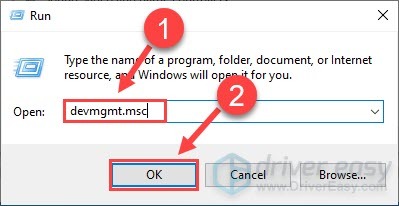
- On your keyboard, press the Windows logo key and R at the same time, then copy & paste devmgmt.msc into the box and click OK.
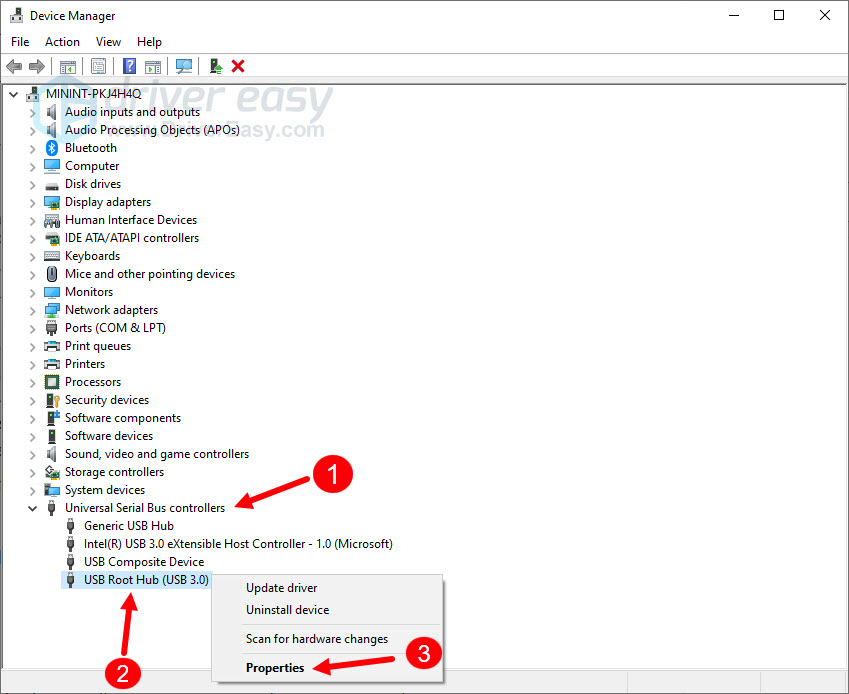
- Double-click Universal Serial Bus controllers. Then, right-click the USB Root Hub (or eXtensible Host Controller) and select Properties.
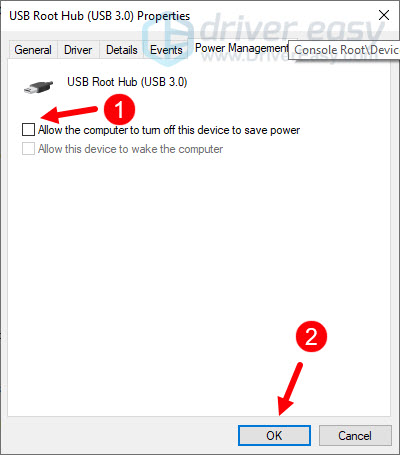
- Select the Power Management tab, make sure to uncheck Allow the computer to turn off this device to save power, and click OK.
If the issue still persists, continue to the next section to safely reinstall your USB driver.
How to reinstall the USB drivers safely
If multiple USB devices fail or disconnect at the same time, or Device Manager displays a yellow warning icon under your universal controllers, the issue may be related to the USB controller or USB driver stack. In this case, reinstalling the USB driver may help. Here are the two safest ways to do it:
Option 1 – Reinstall the drivers using Device Manager
Device Manager is a Windows built-in tool that allows you to view and control the hardware attached to your computer and update the device drivers. To reinstall the USB drivers in Device Manager, follow the steps below:
- On your keyboard, press the Windows logo key and R at the same time to open the Run command. Then, type devmgmt.msc and click OK.
- Click Universal Serial Bus controllers to view the devices under this category. You may see entries such as USB Root Hub, Generic USB Hub, and USB eXtensible Host Controller, etc.
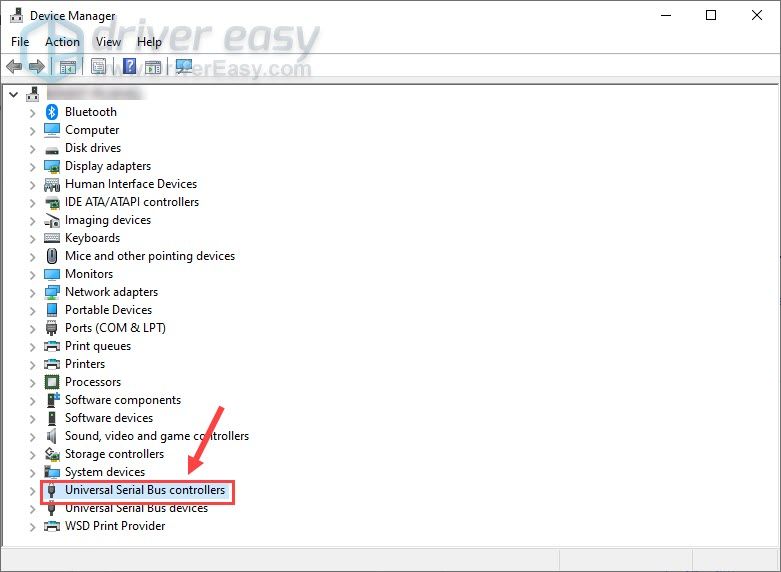
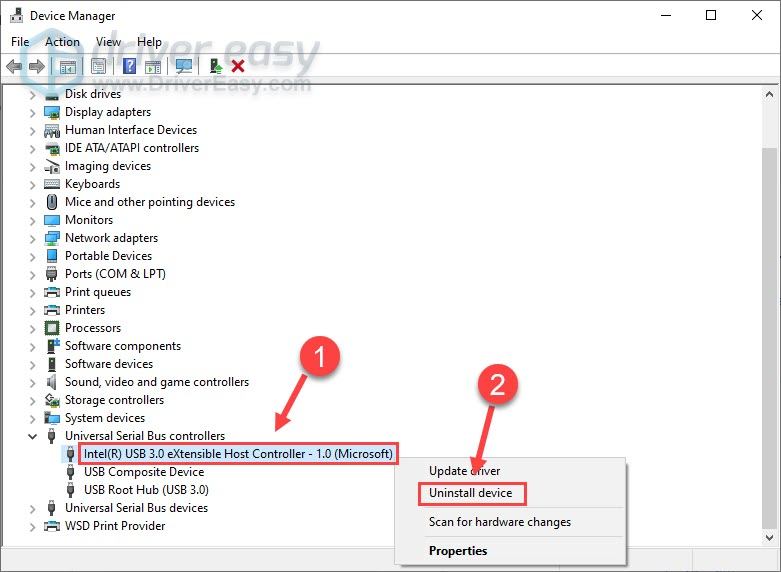
- Right-click one device and click Uninstall device. DO NOT remove everything at once.
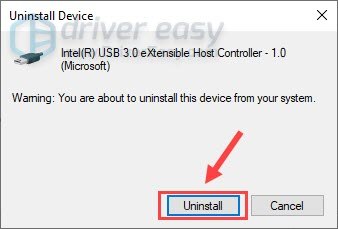
- Click Uninstall to confirm.
- Once done, in the Device Manager menu, click the Action tab and select Scan for hardware changes. Windows should automatically reinstall the appropriate USB drivers.
Check if the problem resolves. If not, you can repeat the process for another USB Root Hub or Host Controller.
Option 2 – Automatically reinstall the USB drivers (recommended)
If you don’t have the time, patience or computer skills to reinstall the USB drivers manually or if you want to get the latest USB driver, we recommend using Driver Easy.
Driver Easy will automatically recognize your system and find the correct drivers for it. You don’t need to know exactly what system your computer is running, you don’t need to risk downloading and installing the wrong driver, and you don’t need to worry about making a mistake when installing.
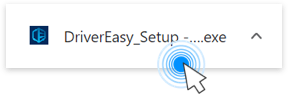
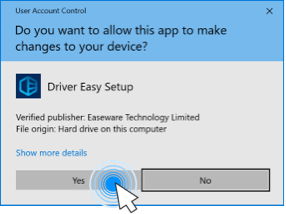
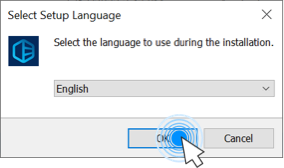
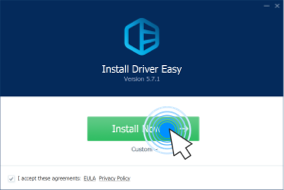
- Download and install Driver Easy.
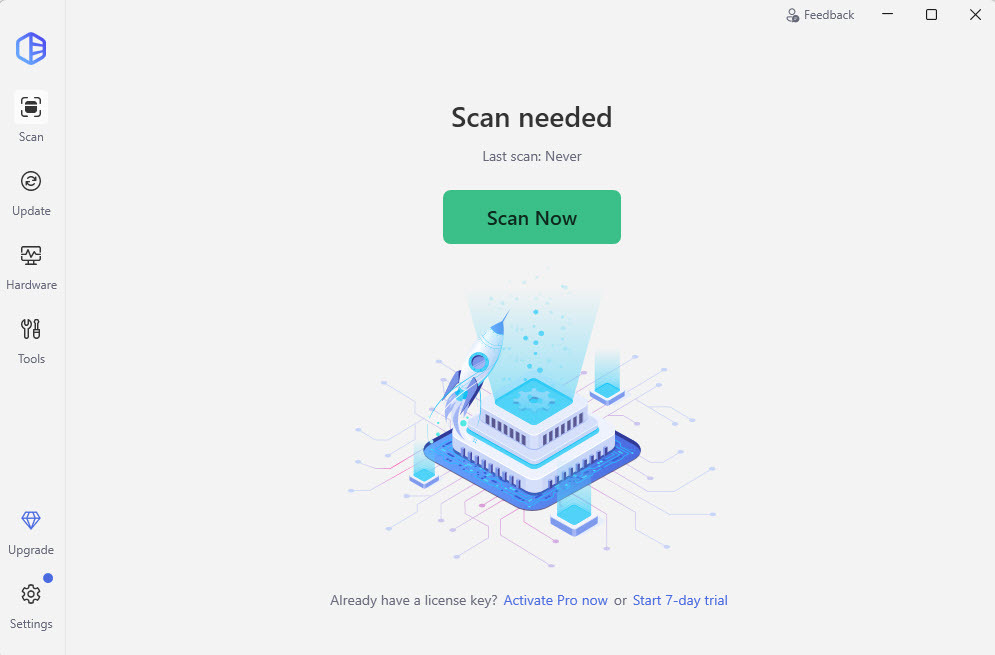
- Run Driver Easy and click the Scan Now button. Driver Easy will then scan your computer and detect any problem drivers.
- Click Activate & Update next to the flagged USB device to automatically download and install the correct version of this driver. If you’re not sure which driver to update, simply click Update All to automatically update all the drivers that are missing or out of date on your system.
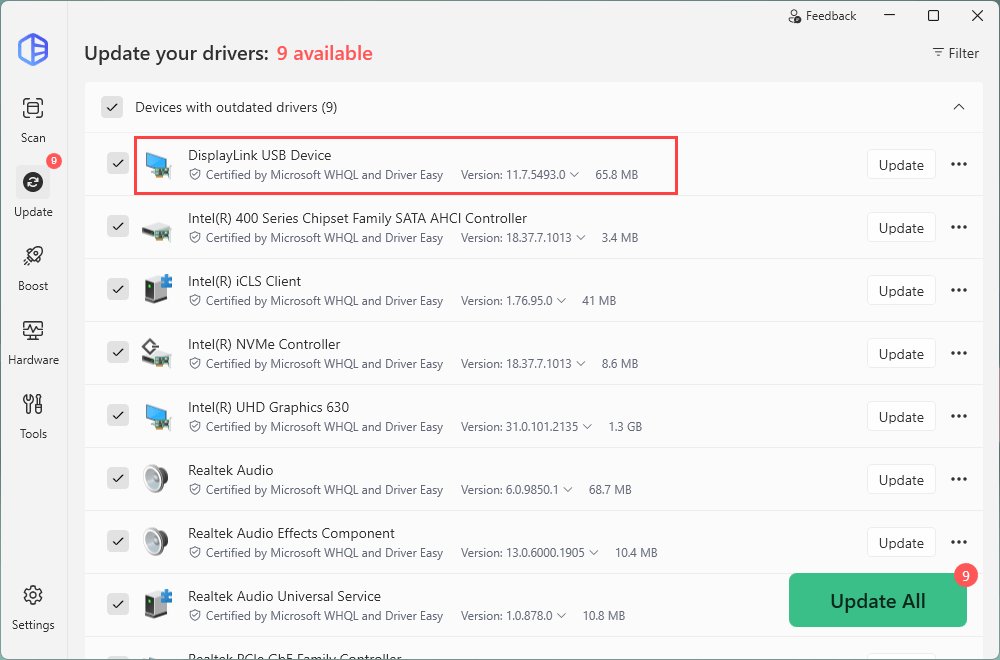
(This requires the Driver Easy Pro version, backed by a 30-day money-back guarantee and live technical support. A 7-day free trial is available.) - Restart your computer for the changes to take effect.
What if reinstalling doesn’t work?
If you’ve successfully reinstalled or updated the drivers but your USB ports are still completely unresponsive or showing a persistent Code 43 / Code 10 error, it’s likely caused by a stuck USB controller power state. This happens when the motherboard shuts down power to the USB hubs to protect itself. You can perform a motherboard hard reset following the steps:
1) Shut down your computer completely.
2) Unplug the power cable from the back of your PC tower (or remove the physical battery if you are using an older laptop).
3) Disconnect all USB devices (including your mouse and keyboard).
4) Press and hold the PC’s physical power button down for 30 full seconds. This safely drains any residual electrical charge trapped in the motherboard’s capacitors, resetting the port sensors.
5) Plug the power cable back in, boot up Windows, and reconnect your USB devices. Your ports should now be fully active.
There you have it: a complete guide to diagnosing your USB issues and reinstalling your drivers safely. If you have further suggestions or questions, feel free to leave a comment below!